
MissionGet
AI glassesfor office work
Request meeting notes or a task.
Continue in the MissionGet workbench.
Recorded.What happens next?
The request was specific: say “help me write up today’s meeting” through the glasses, then continue on the computer. After recording and transcription, the request still needs to become a task that a person can review and hand off.
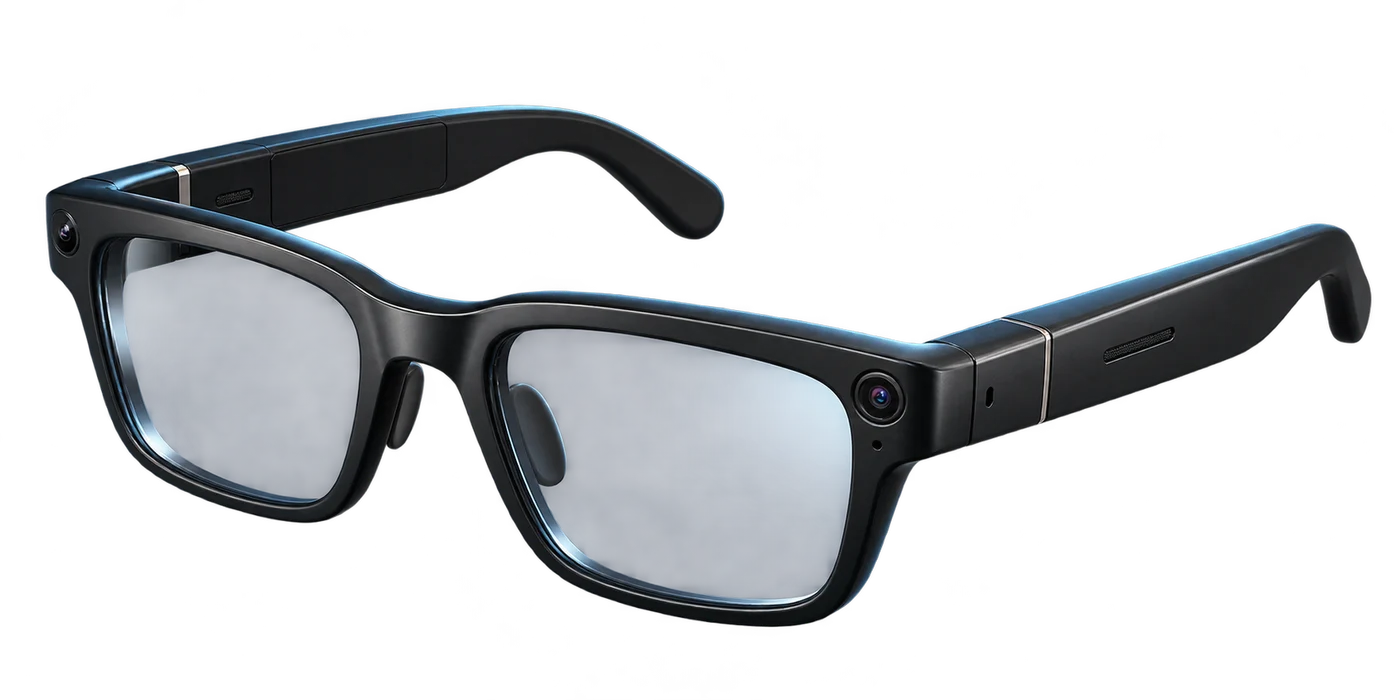
The glasses are OneGlance AG05, using the vendor’s hardware and SDK. My part was the office experience around MissionGet and the phone-side prototype integration.
- Glasses · capture
- Phone · talk and confirm
- Workbench · work and files
Finish speaking.Pick up the phone again.
The first version could record and transcribe. But “Done speaking” and “Send to Xiao Mi” were still separate buttons. A spoken request left people with two more taps on the phone.
Two connections to check
An iPhone Bluetooth connection could be active while the app’s control channel was disconnected. Voice input used another connection. Showing control and audio separately made it clearer where to reconnect.
- 01Connect glasses
- 02Capture speech
- 03Review request
- 04Hand off work
Short requests.Meetings get their own path.
My meetings usually last tens of minutes. A 45-second voice command was not enough. Meeting recording got its own entry, while short commands remained for schedule queries or task requests. Audio stays findable on Home; changes to tasks still need confirmation.
- 01Say the request
- 02Pause to finish
- 03Hear the reply
- 04Review and confirm
A pause ends the short recording. Review the request before confirming.
Fewer phone actions.A clear place to confirm.
Record it.Find it again on Home.
Recent captures was added to Home so recordings could be replayed or deleted. These records live on the phone, separate from task files in the workbench.
Try a smalloffice request.
Choose a request and follow the review and handoff
INTERACTIVE DEMO · fixed examples
AI GLASSES
Choose an office request
What would you like to do today?
MISSIONGET WORKBENCH
Ready for the next thing
Review first, then view the sample result.
Start on the phone.Continue at the desk.
The first phone prototype had a separate task page. We then connected it to the existing MissionGet account, so Xiao Mi could reach the same tasks and files as the desktop.
Check that the document reaches the desktop
A request started on the phone, the workbench saved a test document, and the same file appeared on desktop. The integration check used test content.
Bring the glassesto the hackathon.
The glasses and computer went to the hackathon together. The poster explained how they worked together, with the app on the demo table.
More timewearing the glasses.
Voice conversation currently needs the app in the foreground. Physical-button photo transfer still needs verification, as do real, long meeting recordings. Those are the next things to make dependable.
Credits and technical details +
Device control and Bluetooth audio are handled separately. Short commands and meeting recording have distinct entries. Captures stay on the phone; tasks and workbench files use the existing MissionGet account. The interactive sequence on this page uses fixed examples.
Platform and engineering / MissionGet team
Hardware and SDK / OneGlance AG05 vendor
Visuals / AI-assisted scenes; device interfaces and event photos labeled separately